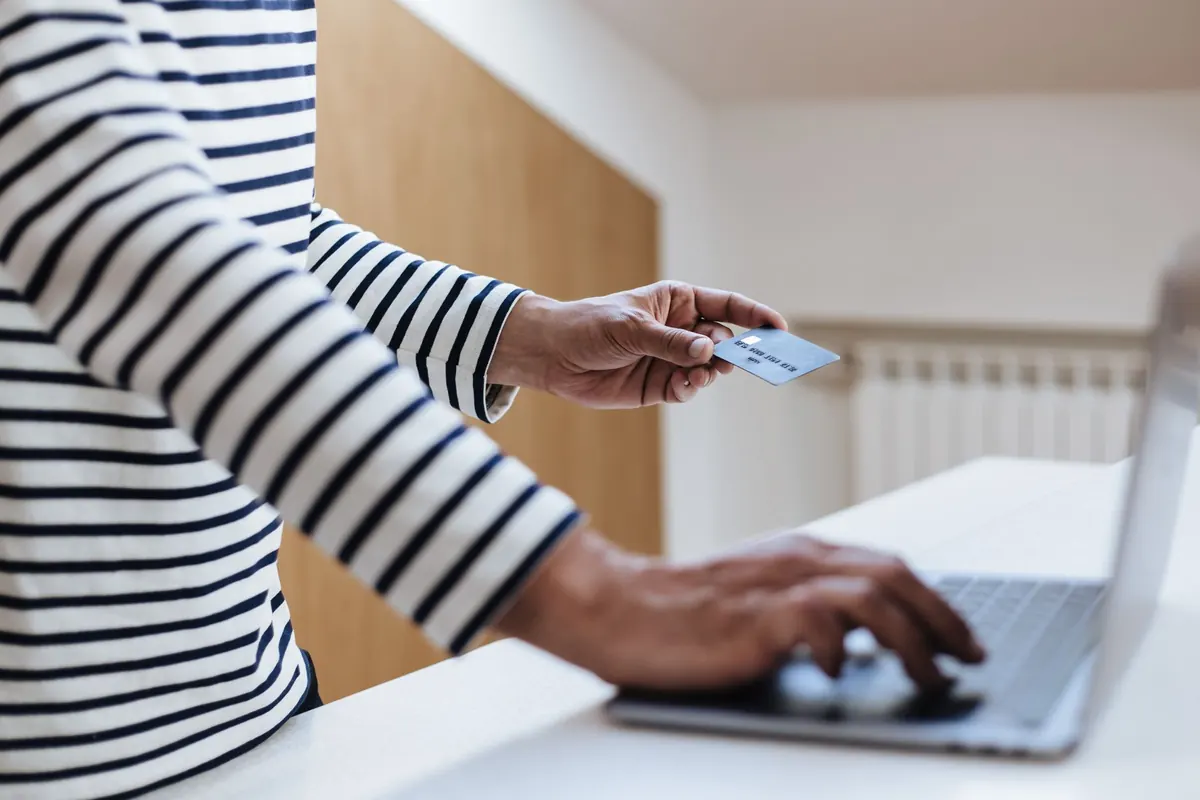
The airport Wi-Fi at Gate B12 saved you an hour of boredom and let you pay a bill before boarding. The café network downtown let you send a deadline file without burning mobile data. Nothing went wrong either time. That is usually how it goes, which is exactly why the ten minutes you spend setting up properly is worth more than the risk of skipping it. The trouble on public networks is rarely dramatic. It is quiet, opportunistic, and aimed at the careless login rather than at you personally.
Here is a routine you can learn once and repeat in any café, terminal, hotel lobby, or conference centre.
What Actually Goes Wrong on Open Wi-Fi
A network you do not control is a network you cannot fully audit. The problems tend to fall into a few recognisable patterns.
- Rogue hotspots. Someone sets up a network called "Airport_Free_WiFi" near the real one. You join it, and everything you load passes through their machine.
- Unencrypted traffic. Sites and apps still using plain HTTP can be read by anyone on the same network with basic tools. Captive portals and small local sites are the usual offenders.
- Device-to-device snooping. On some shared networks, other machines can see what your laptop or phone is advertising — shared folders, printers, device names you never meant to publish.
- Fake login pages. A portal that asks for your email password, Google account, or card number to "activate your session" is not a captive portal.
- Session theft. If someone captures the cookie that keeps you logged in, they may never need your password at all.
None of this means staying offline. It means treating every public network as untrusted by default and behaving accordingly.
The Ten-Minute Setup You Do Once
Do this at home, on your own connection, and you will not have to improvise at a departure gate.
- Install a reputable VPN on your phone and laptop. Turn it on before you connect to a public network, not after you have already signed in somewhere.
- Enable two-factor authentication on email, banking, cloud storage, and social accounts. An authenticator app or hardware key is stronger than codes sent by text message.
- Stop devices from auto-joining open networks. The wording varies by version, but look under Wi-Fi settings for options like "Ask to join networks," "Connect to open networks," or "Auto-connect to public hotspots" and switch them off.
- Delete saved networks you no longer use. A phone that eagerly reconnects to a chain café's network will reconnect just as eagerly to an impostor using the same name.
- Turn on device encryption and a real passcode or PIN. A stolen laptop should not be an open book.
- Update your browser and operating system. Most public-network attacks exploit flaws that were patched months ago.
Ten minutes, once. After that, only step one needs repeating on each trip.
Joining a Network Without Guessing
Arrival is the moment most people make their mistake. Slow down for thirty seconds.
- Ask staff for the exact network name. Spelling matters, and so does case.
- Check whether it asks for a password. A guest network with a printed password is a normal, reasonable setup. A wide-open network with no password at all exposes everything you do on it.
- Turn off file sharing, AirDrop set to "Everyone," or Nearby Share before you connect.
- Connect, then start your VPN before typing a single credential.
- If the portal asks for anything beyond a room number, an email address, or a click-through, close the tab and use your hotspot instead.
Your Phone Hotspot Is Often the Better Choice
A hotspot is not automatically more secure — it is only as safe as its password — but it is a network you own, and that matters. Reach for it whenever the task involves money, identity, or work files: banking, tax portals, medical results, remote desktop sessions, or uploading anything confidential.
Two practical details. Set a long, unguessable hotspot password, ideally WPA2 or WPA3 if your phone lets you choose. And watch your data allowance: video calls and cloud backups can consume a limited plan quickly, and tethering is sometimes billed separately from your normal phone data.
Banking, Logins, and Files: Rules Worth Keeping
- Do financial and medical tasks on cellular data or a VPN-protected connection — and if you can wait until you are somewhere private, wait.
- Use the official app rather than a browser, where you have the choice. Apps are harder to spoof than a login page.
- Never sign in to email or banking on a shared computer, including hotel business centres and library terminals.
- Log out properly when you finish. Closing a tab is not logging out.
- Check that a site shows a padlock and a correct domain name before entering anything.
- Keep sensitive files in an encrypted container rather than loose in a downloads folder, and turn on "find my device" with remote wipe.
- Do not leave your laptop on the table while you queue for coffee. Physical theft solves the problem faster than any exploit.
If a transaction looks wrong or you get a login alert you did not cause, contact your bank or provider directly using the number on your card or in their official app — never a number from a pop-up, email, or search ad.
For anything with real financial or legal consequences, speak to your bank or a qualified professional rather than relying on general guidance.
If You Think Something Went Wrong
In the first few minutes
Disconnect from the network and choose "forget" so your device does not rejoin it later. If you entered card details, call your bank now. If a company laptop is involved, tell your IT team immediately — they would rather hear it early.
In the next hour or two
Change passwords from a trusted connection, starting with your email account, because that is what resets everything else. Sign out of all active sessions on your important accounts, revoke app permissions you do not recognise, and skim your recent card activity. Run a full malware scan and install any pending updates. Mention the fake hotspot to venue staff so they can warn other guests.
The Habit That Covers Most Trips
Before you tap "connect," ask three questions. Is this the network the staff told me about? Is my VPN running? Does this task genuinely need to happen right now, in this seat, on this connection? If the answer to the last one is no, wait. Pay the bill from the taxi, send the file from your hotel room, check the bank balance at home.
Public Wi-Fi is not dangerous enough to avoid, and not safe enough to forget about. Build the setup once, keep the hotspot as your fallback for anything sensitive, and the rest of your trip can stay pleasantly boring.
Photo: Gustavo Fring / Pexels